
Copying Appointments
To make another appointment for a patient, you can copy their existing appointment from the Session or Day view.
- Right click on the appointment to select it.

- If you are copying the appointment to a slot on the same day pressing CTRL and using drag and drop will copy the appointment.
- If the appointment is to be copied to a different day then the clipboard is needed.
Upon right click, the toolbar displays at the top of the screen.
- Select the Copy
 button.
 - From the View menu select the Clipboard
 button.
 - The clipboard displays Copied appointments.
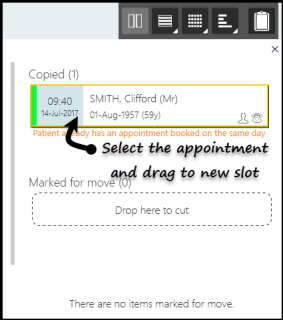
- Select the copied appointment, drag and drop into a free slot.
- The booking confirmation message displays.

Note - Using CTRL with drag and drop copies the patient information only.
Note - the Appointment remains on the clipboard until you either close the app, or copy another appointment to the clipboard.

